
You can change the root/admin password of your VPS operating system using Virtualizor.
1. Log in to your Virtualizor Control Panel.
2. From the left side panel, click on List VPS.
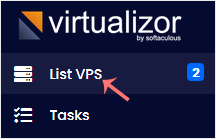
3. Hover your mouse on the appropriate VPS, and that line will be highlighted. Then click on the Manage icon in the highlighted line.

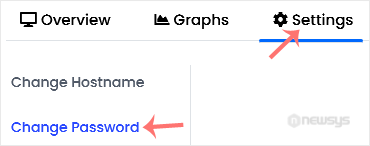
4. Click Settings and then choose Change Password.
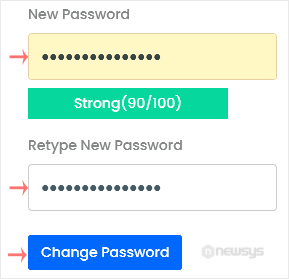
5. Enter your new password, and confirm with Change Password.
6. On the top right side, choose Poweroff.

7. Finally, click on Start.

It may take a few minutes for the VPS to start. You can then access it with your new password.